
What Is The Best Memory Card for Gaming PC? A Complete Guide
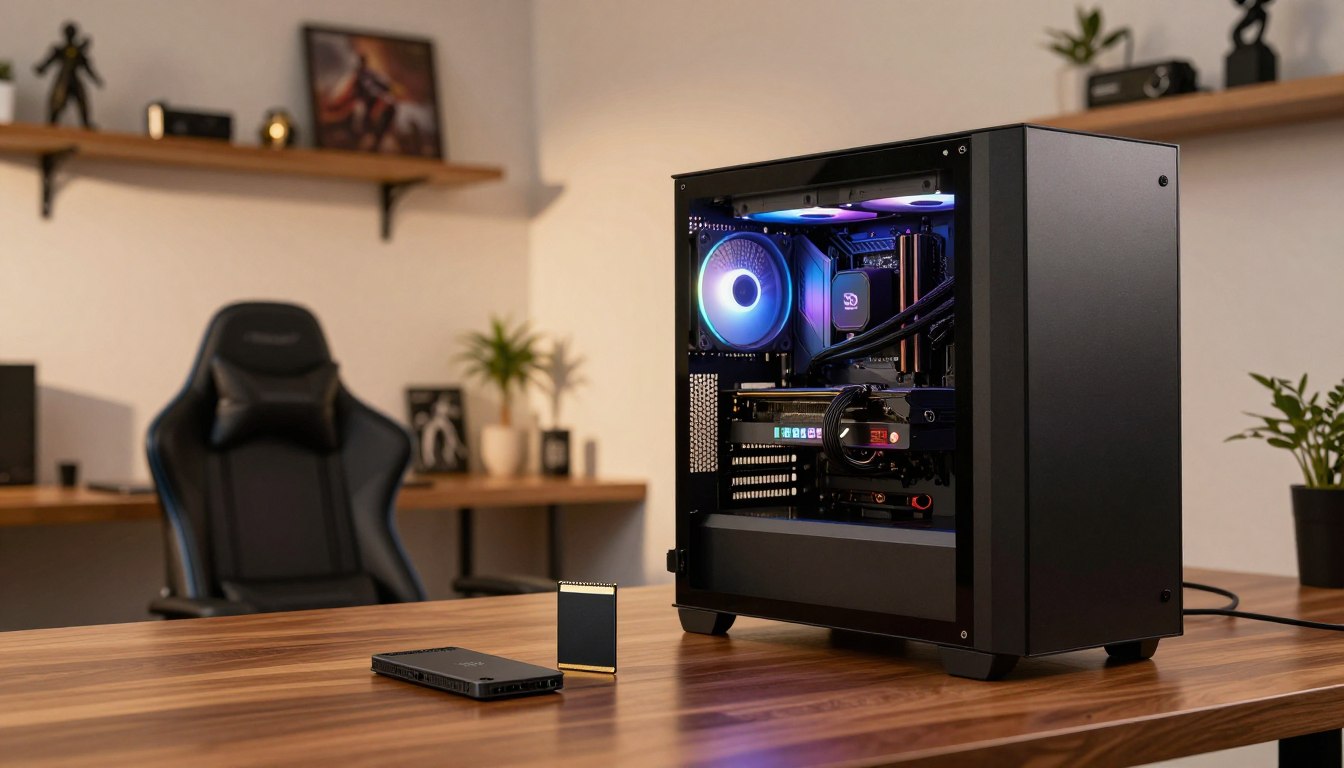
A memory card is not the right primary game drive for a desktop gaming PC; use an SSD for that job. Your computer uses RAM for active work and storage for files that need to remain available. Games installed on an SSD can load from that drive, while an SD card is removable storage that needs a compatible reader.
That distinction matters when you’re choosing storage for PC gaming. A card can help carry files between devices or expand storage on a compatible handheld, but it does not replace RAM or an SSD. Desktop card-reader support varies, so check whether yours has one before planning a card-based setup.
Key Takeaways
- Use an SSD for installed desktop PC games.
- RAM holds data your computer is actively using.
- An SD or microSD card needs a compatible reader.
- Cards can expand storage on supported gaming handhelds.
Check whether your PC has a built-in reader before buying a card for removable storage.
What Is the Best Memory Card for Gaming PC?
For a desktop gaming PC, choose an SSD for installed games, not an SD card. An SSD gives your game library a dedicated drive, while RAM holds data the computer is using right now. A memory card is optional removable storage, not a replacement for either one.
Keep installed desktop games on an SSD. Treat a memory card as optional removable storage, not a replacement for RAM or an SSD.
Windows games install to storage such as an SSD. RAM supports active computing, including the work a game needs while it runs. A practical baseline for many gaming setups is 16GB of RAM; 32GB gives you more headroom for demanding games and other open programs.
An SD or microSD card only works with your desktop if the computer has a compatible built-in reader or you connect an external card reader. Without one, the PC has no way to access the card. Check your computer’s ports and included hardware before adding a card to your storage plan.
You can install games on a card after connecting it, but that makes it secondary storage. Its suitability depends on the card, the reader, and the game’s needs. That setup may suit files you move between devices, but it does not turn a card into the same kind of drive as an SSD.
A gaming handheld with a card slot can make removable storage more useful. These devices are designed to support expansion, though the slot standard and card compatibility still matter. A desktop computer usually has no dedicated game-card slot, so adding a reader does not change its best choice for a main game library.
Treat an SD card as optional removable storage unless your device is a handheld designed for game-card expansion.
Do Gaming PCs Actually Use SD Cards?
A gaming handheld with a microSD slot can use a card for games, but a desktop PC usually needs a separate reader. The exact device decides whether a card is useful and which interface it can use. Check the slot standard before buying storage for any gaming device.
A desktop PC can read an SD or microSD card only through a compatible built-in or external card reader. A handheld with a dedicated slot is different: its manufacturer designs the device to accept a card for added storage. The two setups may use the same card format, but they do not necessarily support the same bus interface.
Desktop PCs rely on SSDs for installed games
For desktop PC games, an SSD remains the appropriate main drive. A reader lets the computer access cards for portable files or secondary storage, but it does not make every card a good fit for a game library. Think of the reader as a connection for removable files, not a dedicated handheld-style expansion slot.
ROG Ally models use different microSD interfaces
The ROG Ally, ROG Ally X, ROG Xbox Ally, and ROG Xbox Ally X have UHS-II microSD slots. The ROG Ally’s UHS-II slot can also read UHS-I cards. The ROG Ally X and newer models can use certain overclocked UHS-I cards at speeds up to 200 MB/s. The ROG Xbox Ally X20 has a microSD Express slot and 1TB of internal SSD storage.
UHS-I cards are generally sufficient for indie and retro games on ROG Ally handhelds. UHS-II or microSD Express may be worth considering for large, asset-heavy AAA games that load many files. Faster interfaces do not guarantee a faster experience unless the device supports them.
Nintendo Switch 2 requires microSD Express
Nintendo Switch 2 requires microSD Express for game storage. Standard UHS-I cards will not work for that purpose. Express speeds also depend on Switch 2 hardware, so an Express card cannot bring that advantage to a device with a different slot.
- Check the exact device’s slot standard.
- Consider whether you play indie games or asset-heavy titles.
- Confirm the card’s interface is supported by the device.
Match the card standard to the exact device model, especially when comparing a UHS-II slot with microSD Express.
Which Card Types and Speed Ratings Matter?
The fastest listed microSD interface is microSD Express, with a maximum of 985 MB/s, but that number requires compatible hardware. Maximum interface speed is a ceiling, not a promise of everyday results. The bus interface is the connection between a card and a device that sets the card’s maximum possible transfer speed.
Actual transfer speeds depend on both the card and the device. A fast card in a slower slot cannot reach its full interface ceiling. UHS-I, UHS-II, and UHS-III name interfaces, not speed classes. UHS-II and microSD Express are separate standards, and they are not inherently backward-compatible.

What Is the Fastest microSD Card?
MicroSD Express has the highest maximum interface speed in this comparison. The limits for UHS-I, UHS-II, and UHS-III are lower, and a compatible slot is needed to use each interface’s full potential. A UHS-II card in the ROG Xbox Ally X20 runs at UHS-I speeds.
Bus interface sets the speed ceiling, not the actual speed
Use the interface table to compare ceilings, then check the device’s slot. The microSD Express interface reaches a maximum of 985 MB/s, but a device with a UHS-I slot cannot use that ceiling.
| Interface | Maximum interface speed | Compatibility note |
|---|---|---|
| UHS-I | 104 MB/s | Requires a UHS-I or compatible faster slot |
| UHS-II | 312 MB/s | Requires a UHS-II slot for its full interface speed |
| UHS-III | 624 MB/s | Requires UHS-III support to reach its ceiling |
| microSD Express | 985 MB/s | Requires a microSD Express slot |
Speed classes and app ratings measure different things
A speed class shows the minimum sequential write speed a card guarantees, not its maximum interface speed. U1 guarantees 10 MB/s, and U3 guarantees 30 MB/s. V6, V10, V30, V60, and V90 guarantee minimum writes of 6, 10, 30, 60, and 90 MB/s.
E150, E300, E450, and E600 guarantee minimum write speeds of 150, 300, 450, and 600 MB/s. A card can meet or exceed a device’s required speed class. Still, mismatched class symbols may not deliver the expected write speed, even when the stated minimums seem to match.
A1 guarantees 1,500 random-read and 500 random-write IOPS. A2 guarantees 4,000 random-read and 2,000 random-write IOPS. These app-performance ratings measure random access, rather than sequential file transfers.
Check the slot standard first, then compare the card’s real read and write specifications with your workload.
Which Memory Cards Are Worth Buying for Gaming?
For a compatible UHS-I handheld, the Kingston Canvas Go Plus is a sensible starting point, while the fastest option depends on the slot. Choose for compatibility first, then compare capacity and stated speeds. The card with the highest listed read speed may not be the fastest choice in a device with a slower slot.
Listed maximums describe a card’s stated ceiling, not the read speed you will get in every device. The reader, slot, and card interface all affect real performance. For a practical UHS-I default, the Kingston Canvas Go Plus suits a compatible handheld without requiring an Express slot.
The Lexar Professional SILVER PLUS makes sense when its higher stated speeds or large capacity are useful. Its full read speed requires the Lexar RW310x reader. For a microSD Express slot, Samsung P9 Express is the suitable option in this group. Lexar lists the 2TB SILVER PLUS at 255 MB/s read and 180 MB/s write.
| Model | Interface | Stated maximum read speed | Listed capacity | Compatibility point |
|---|---|---|---|---|
| Lexar Professional SILVER PLUS microSDXC | UHS-I | 255 MB/s | 2TB | Full read speed requires Lexar RW310x reader |
| Kingston Canvas Go Plus microSDXC | UHS-I | 170 MB/s | Up to 512GB | Choose for a compatible UHS-I slot |
| SanDisk Extreme microSDXC | UHS-I | 170 MB/s | Up to 1TB | Choose for a compatible UHS-I slot |
| SanDisk MicroSDXC for Nintendo Switch | UHS-I | 100 MB/s | Up to 256GB | Confirm the exact device’s card support |
| Samsung P9 Express 512GB microSDXC | microSD Express | 800 MB/s | 512GB | Requires a microSD Express slot |
Kingston lists maximum write speed of 70 MB/s for the Canvas Go Plus. SanDisk Extreme lists up to 80 MB/s write and 1TB capacity. The SanDisk card for Nintendo Switch lists up to 90 MB/s write, with capacities up to 256GB. Samsung P9 Express is listed at 512GB.
These models serve different devices and needs, so there is no advantage in paying for an interface your slot cannot use. The fastest microSD card for gaming is not necessarily fastest in a handheld that supports only a slower standard. None of these cards replaces a desktop PC’s SSD.
Choose the Samsung P9 Express only when the device has a microSD Express slot.
How Much Capacity Do You Need for a Game Library?
A 128GB card holds roughly 1-6 large games if each takes about 20-100GB, and far more small titles. Game size makes the difference: a few large installs can fill a card quickly, while compact indie games take much less space. Pick capacity based on the games you plan to keep installed together.
The estimate is only a guide. Actual usable capacity and game counts depend on install sizes, updates, and whether the card also stores other files. A game may grow after updates, so leave room for changes rather than planning to fill every available gigabyte.
For ROG Ally handhelds, the guide recommends cards from 512GB to 2TB for storing games. That range is specific to those handhelds, not a universal rule for desktop PCs or every device with a card slot. Check the exact device’s supported capacity before choosing a card.
If you play a small number of large games, a larger card can reduce how often you remove titles to make room. A collection of smaller games may fit comfortably on less storage. Keep in mind that screenshots, saved files, downloads, and other files can also use card space.
For a large desktop PC library, the SSD is the better place to keep installed games. A card may be handy for removable files, but its capacity does not make it equivalent to a desktop game drive. A clear split can help: keep regular PC installs on the SSD and use a card for files you want to carry.
Choose capacity around the games you intend to keep installed at the same time, not the largest number printed on a package.
How Do You Install Games on a Card?
Windows game launchers including Steam and Epic Games can install games to external storage when the card is connected and recognized. Set the card up first, then select it as the install location in your launcher. Formatting erases the data already stored on a card.
Steam, Xbox, Battle.net, Epic Games, EA App, Ubisoft Connect, and GOG Galaxy support installing games to external storage such as an SD card. The card needs to appear as available storage on your computer or handheld before a launcher can use it.

For an ROG Ally, the device guide instructs users to format the card as NTFS. That is an ROG Ally instruction, not a universal format recommendation for every card or device. Back up files first: formatting deletes the card’s existing data.
- Back up the card’s files.
- Insert it into the compatible device or card reader.
- Format as NTFS only when following the ROG Ally instructions.
- Choose the card as the game’s install location in the launcher.
Once the card is connected, use the launcher’s storage or install settings to select it. The menu names differ between apps, but the important choice is the destination drive. If the card does not appear, check that the reader recognizes it before trying to install a game.
External storage can make a library easier to move or expand, but it does not change the card’s interface or the device’s limits. Choose an installation location that the device can access reliably. Keep a backup of personal files before changing how the card is formatted.
Back up files before formatting, because the format process erases the card.
When Does a Gaming Card Also Suit Cameras and Phones?
For 4K action-camera video, start with a V30/U3 card that the camera supports, rather than choosing by its highest read-speed claim. Steady writing matters during recording, while read speed matters more when moving footage to another device. Match the card format and interface to the camera’s requirements.
A camera may use full-size SD cards or microSD cards, depending on its slot. A microSD card in an SD adapter works only if the camera accepts that arrangement. Check the camera’s support for the card format and speed class before recording important footage.
A card for 4K video and action cameras
V30/U3 is a practical target for suitable 4K action-camera and drone recording. It addresses sustained writing during capture, not how quickly you can offload finished video. Lexar Silver Plus recorded 177 MB/s read and 151 MB/s write in sequential benchmarks. SanDisk Extreme recorded a 96 MB/s sequential write result.
Those results give you examples, not a guarantee for every camera. A camera’s slot and recording demands still set the useful level. SanDisk Extreme can suit buyers seeking a lower-cost-performance option, while Lexar Silver Plus is a faster UHS-I example for supported devices.
UHS-II cards for professional photography
For professional photography, Lexar Professional 2000x UHS-II is an option when both the camera and card reader support UHS-II. Its large-file write result measured 234 MB/s, and it is available in capacities up to 256GB. Transcend UHS-II is a smaller-capacity alternative, with a measured large-file write of 224 MB/s and capacities up to 64GB.
UHS-II can speed up transfers when the camera and reader support the interface. A UHS-II card in a slower reader will not deliver the same transfer performance. For shooting, check the camera’s required write speed; for offloading, confirm the reader’s interface.
Choosing a card for an Android phone
Android phones differ in whether they accept microSD cards. Check your specific phone’s support, then choose a compatible capacity and an appropriate app-performance rating. If the phone lacks a microSD slot, a card cannot expand its internal storage through that slot.
Before buying for a phone or camera, confirm the slot type and required speed class in that device’s specifications.
What Should You Check Before Buying?
Before paying, verify the device slot, reader and card standard together, not just the speed claim on the package. Compatibility comes first, since a card’s features matter only when the device can use them. Test the card’s full capacity before trusting it with important files.
Check the slot, reader, and card standard as a set. Test the card’s full capacity before storing files you cannot replace.
A printed capacity or speed claim does not prove a card will work as expected. A fake-capacity card may appear to hold more data than it can actually store. H2testw on Windows and F3 on Mac or Linux can test actual capacity and reveal write failures.
- Device slot and card format.
- Card and reader interface.
- Stated capacity and speed class.
- Card authenticity and full-capacity testing.
Testing a 256GB card takes about 20-40 minutes. The check can show whether the card stores its stated capacity and whether writing data fails. Run the test before loading a library, recording footage, or trusting the card with files that have no backup.
A microSD-to-SD adapter is a passive connector. It does not add to or reduce the card’s throughput. The adapter connection can still lose contact, interrupting use even though the card itself is working.
That makes an adapter a poor choice for recording work where a disconnect could cost a take. Avoid repeated insertion and removal of the whole adapter assembly, especially when a reliable connection matters. Use a direct card slot when your device offers one.
Test a card’s full capacity before trusting it with files you cannot replace.
Conclusion
A desktop gaming PC needs an SSD for its main game library, while a compatible handheld may benefit from a well-matched microSD card. For a supported UHS-I handheld, Kingston Canvas Go Plus is a sensible default. MicroSD Express is a device-specific choice, not a general upgrade for every card reader.
Check the exact device model and slot before buying. Then compare its available storage with the games you want to keep installed. Check your device’s slot and available storage, then buy only the card standard it can use.
FAQ
How many games can a 128GB SD card hold?
A 128GB SD card holds roughly 1-6 large games that use about 20-100GB each, and many more smaller games. Actual usable space varies, and updates can increase a game’s install size. Files such as screenshots and downloads also take room, so a card set aside for games may hold more than one shared with other data.
What are the different speeds of microSD cards?
Maximum interface speeds are 104 MB/s for UHS-I, 312 MB/s for UHS-II, 624 MB/s for UHS-III, and 985 MB/s for microSD Express. Those are ceilings, not guaranteed real transfer speeds. The device needs to support the card’s interface, and the card’s own read and write performance can remain below its interface maximum.
Are SD cards good for gaming?
Yes, SD cards can expand storage on compatible handhelds and carry removable files between devices. They do not replace an SSD as the primary game drive in a desktop PC. A card reader is needed for a desktop computer to access an SD or microSD card, and the reader’s interface affects possible transfer speeds.
What is the fastest memory card?
MicroSD Express has the highest maximum interface speed listed here, at 985 MB/s. A compatible microSD Express slot is needed to use that interface. In a device with a slower slot, the card cannot reach its interface ceiling, so the fastest card on a package may not be the fastest practical choice for that device.
Which brand of SD card is the best?
SanDisk, Samsung, Lexar, Kingston, and Transcend all make relevant storage options, but no brand is best for every device and task. Compare genuine models by their supported interface, speed class, capacity, and actual read and write specifications. A well-matched card from a recognized manufacturer is a better choice than an unsupported high-speed model.
Which SD card is better, SanDisk or ProGrade?
SanDisk suits many mainstream buyers, while ProGrade can fit professional workflows that use compatible UHS-II equipment. The exact model matters more than the name alone. Check that the card’s interface matches the camera and reader, then compare the needed capacity and write performance for your use.
What are the top 5 SD card brands?
SanDisk, Samsung, Lexar, Kingston, and Transcend are five established options, not a universal ranking. Each brand offers products aimed at different devices and workloads. Check the exact model for its interface, speed class, capacity, and compatibility rather than assuming every card from one brand performs the same way.
Does it matter what brand of SD card you buy?
Yes, brand matters because a genuine card from a recognized manufacturer is easier to evaluate by its model specifications and support. Still, the brand name alone is not enough. Confirm the interface, capacity, speed class, and device compatibility, and test the card’s full capacity before relying on it for important files.

 By
By